
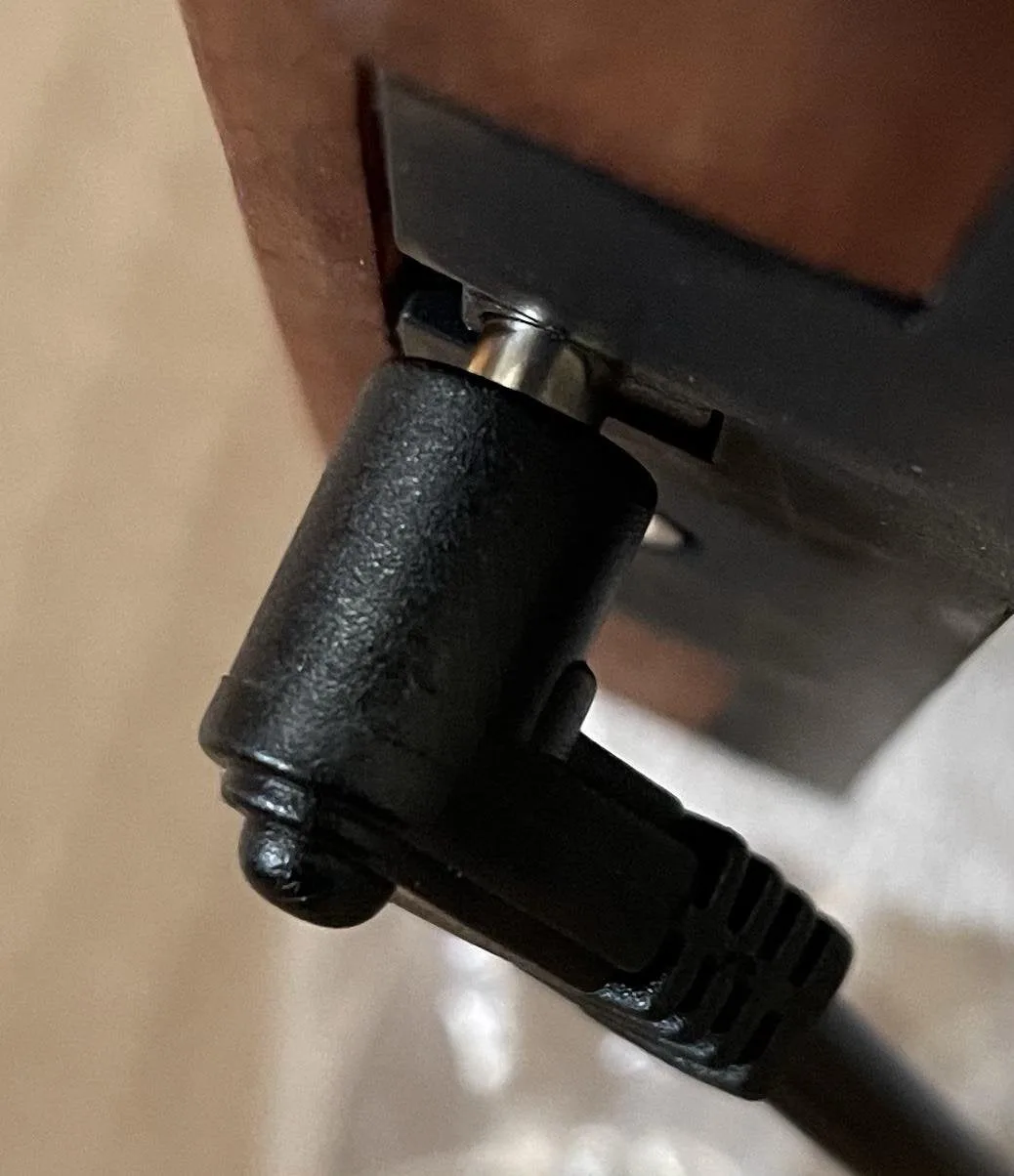
A monitor that flickers, shuts off when you move it, or refuses to power on often has a simple cause: the power cable is loose. The fix can be as easy as reseating the cable, but a worn connector or damaged socket needs more care. Ignoring a loose power connection can also create heat, arcing, or a fire risk.
What a loose monitor power cable actually means
Most desktop monitors use a removable IEC cable with a C13 connector on the monitor side and a wall plug on the other. Some monitors use an external power brick with a barrel connector, while USB-C monitors receive power through the same cable as the video signal. Each type can become loose in a different way:
- The cable pulls out of the monitor or wall socket too easily.
- The connector wiggles inside the monitor socket.
- The monitor loses power when the cable is touched or the desk moves.
- The plug feels hot, smells like burning, or shows scorch marks.
- A barrel plug or USB-C connector does not sit flush.
A loose connection is not only annoying. A partial contact can increase resistance and heat. Stop using the cable if you see damage, discoloration, or melting.
Before you start: safety first
- Turn the monitor off and unplug it from the wall.
- Wait a few minutes before handling the cable or connector.
- Do not open the monitor case. Capacitors inside can hold a dangerous charge.
- Inspect for burn marks, cracked plastic, bent pins, or a loose internal socket. If you find any of these, replace the cable or seek a repair technician.
Step 1: Inspect the cable and connector
Unplug both ends of the cable. Look closely at the C13 connector, barrel plug, or USB-C plug. Check for bent pins, pushed-in pins, cracked housing, debris, and a loose outer shell. Also inspect the monitor socket with a flashlight. Do not insert metal tools into the socket.
If the cable is cracked or the connector is deformed, stop here and replace the cable. A damaged cable is not worth repairing with tape.
Step 2: Try a known-good cable
Use a spare monitor power cable that is rated for the monitor's voltage and current. For a standard C13 monitor cable, almost any correctly rated computer power cable will work. For an external brick, use an adapter with the same voltage, at least the same current, the correct polarity, and the correct barrel size.
If the replacement cable fits snugly and the monitor stays on, the original cable was worn or the wrong size. Replace it and keep the good cable as the permanent one.
Step 3: Check the outlet and power strip
A loose wall socket or power strip can imitate a monitor cable problem. Plug a lamp or another device into the same outlet and wiggle the plug gently. If that device also loses power, the outlet or strip is the problem. Move the monitor to a different outlet and avoid daisy-chaining multiple power strips.
Step 4: Reseat the cable and add strain relief
Push the connector straight into the monitor socket until it seats fully. Do not force it at an angle. Then route the cable so its weight is supported. A cable hanging from the connector can slowly pull it loose, especially on monitors with downward-facing ports.
- Leave a small service loop of slack behind the monitor.
- Use a cable clip or hook-and-loop strap to support the cable.
- Keep the cable away from chair wheels and moving desk parts.
- Do not stretch the cable tight against the wall.
If the monitor has a cable management cover, route the cable through it before tightening the cover.
Step 5: Inspect the monitor's power socket
With the monitor unplugged, look at the socket. The plastic surround should be intact and the internal pins should be straight. If the socket moves inside the monitor, the cable falls out under its own weight, or the monitor cuts out when the connector is touched, the internal solder joints or socket may be worn.
That is a repair for a qualified technician. Do not try to hold the cable in place with tape or glue as a long-term fix.
Step 6: External power bricks and barrel plugs
External bricks are easy to diagnose because the cable and adapter can be replaced separately. Check the label on the brick for voltage, current, polarity, and connector size. A plug that is too small will feel loose; a plug with the wrong polarity can damage the monitor.
If the barrel plug fits but the monitor cuts out when the plug is moved, the brick's cable or the monitor's jack is worn. Replace the brick with an exact-match adapter, or have the jack repaired.
Step 7: USB-C monitors
USB-C monitors can lose power if the cable is underrated or the port is dirty. Use a USB-C cable rated for the monitor's power delivery and try a different port on the computer. Check both USB-C ports for lint and bent contacts. If the monitor powers on with another cable but not the original, replace the cable.
Temporary fixes to avoid
These may seem convenient, but they can make the problem worse:
- Tape or glue around the plug: it can hide heat damage and fail without warning.
- Bending the pins: it can short the connection or break the socket.
- Wedging paper or cardboard into the socket: it is a fire risk.
- Using a random adapter: wrong voltage or polarity can destroy the monitor.
When to replace the cable, brick, or monitor
| Symptom | Likely cause | Best fix |
|---|---|---|
| Cable falls out easily | Worn connector or socket | Replace cable; repair socket if still loose |
| Power cuts out when cable moves | Broken wire or loose internal joint | Replace cable; technician check |
| Plug or connector is hot | Poor contact or damaged cable | Stop using it and replace the cable |
| Monitor works with another cable | Original cable is faulty | Keep the known-good cable |
| Socket moves inside monitor | Broken mounting or solder joint | Professional repair |
Frequently Asked Questions
Can I use any power cable with my monitor?
For a standard C13 monitor, use a cable rated for the monitor's voltage and current. For an external brick, the voltage, current, polarity, and barrel size must match exactly.
Why does my monitor turn off when I touch the power cable?
The connector or internal socket is probably loose, or the cable has a broken wire near the plug. Stop using it and test with a known-good cable.
Is it safe to tape a loose monitor cable in place?
No. Tape can hide heat damage and does not fix a worn connection. Replace the cable or have the socket repaired.
Can a loose power cable damage my monitor?
Yes. Repeated arcing and heat can damage the connector or power circuit. Fix the connection before continuing to use the monitor.


