SATA (Serial Advanced Technology Attachment) ports are the standard interface for connecting storage devices like hard drives and SSDs to your motherboard. Over the years, SATA has evolved through three main generations: SATA 1, SATA 2, and SATA 3, each offering increased bandwidth. Knowing which SATA generation your ports support is important because it directly affects the performance of your storage devices. A SATA 3 SSD connected to a SATA 1 port will be limited to SATA 1 speeds, leaving most of its performance untapped. This comprehensive guide will show you how to identify which SATA generation your motherboard ports support, ensuring you get the best performance from your storage devices.
| SATA Generation | Maximum Speed | Common In |
|---|---|---|
| SATA 1 (SATA I) | 1.5 Gbps (150 MB/s) | Pre-2007 motherboards |
| SATA 2 (SATA II) | 3.0 Gbps (300 MB/s) | 2007-2012 motherboards |
| SATA 3 (SATA III) | 6.0 Gbps (600 MB/s) | 2012+ motherboards |
Table of Contents
- Understanding SATA Generations
- Speed Differences Between SATA 1, 2, and 3
- Physical Identification of SATA Ports
- Method 1: Check Your Motherboard Manual
- Method 2: Check BIOS/UEFI Settings
- Method 3: Use Software Utilities
- Method 4: Visual Inspection of the Motherboard
- Color Coding and Labeling
- Which SATA Port Should You Use?
- Frequently Asked Questions
Understanding SATA Generations
SATA (Serial Advanced Technology Attachment) is a computer bus interface that connects host bus adapters to storage devices such as hard disk drives, solid-state drives, and optical drives. SATA has gone through three main generations, each offering higher bandwidth than the previous one.
SATA 1, also known as SATA I, was the first generation of SATA, introduced in 2000. It provides a maximum bandwidth of 1.5 Gbps, which translates to approximately 150 MB/s after accounting for encoding overhead. SATA 1 replaced the older Parallel ATA (PATA) interface and provided a significant improvement in speed and cable management.
SATA 2, or SATA II, was introduced in 2004 and doubled the bandwidth to 3.0 Gbps, or approximately 300 MB/s. This increase in speed allowed for faster data transfer between the motherboard and storage devices, though most hard drives of the era could not saturate even SATA 1 bandwidth.
SATA 3, or SATA III, arrived in 2009 and doubled the bandwidth again to 6.0 Gbps, or approximately 600 MB/s. SATA 3 is the current standard and is the minimum recommended for modern SSDs, which can reach speeds of 500-560 MB/s, approaching the maximum bandwidth of the SATA 3 interface.
Understanding these generations is important because connecting a storage device to a port of a lower generation limits its maximum speed to that generation's bandwidth. A SATA 3 SSD connected to a SATA 2 port will be limited to approximately 300 MB/s, even though the SSD is capable of 500+ MB/s.
Speed Differences Between SATA 1, 2, and 3
The practical speed differences between SATA generations significantly impact storage device performance. Understanding these differences helps you make informed decisions about which ports to use for your storage devices.
SATA 1 provides a maximum throughput of approximately 150 MB/s. This speed was adequate for the hard drives of its era, which typically achieved sequential read speeds of 50-100 MB/s. However, SATA 1 is significantly slower than modern storage devices, and connecting an SSD to a SATA 1 port severely limits its performance.
SATA 2 provides a maximum throughput of approximately 300 MB/s. This speed is sufficient for most hard drives, which rarely exceed 200 MB/s even in RAID configurations. However, SATA 2 limits the performance of modern SSDs, which can reach 500+ MB/s on SATA 3 ports.
SATA 3 provides a maximum throughput of approximately 600 MB/s. This speed is necessary to realize the full performance of modern SATA SSDs, which typically achieve 500-560 MB/s sequential read speeds. SATA 3 also provides enough bandwidth for most consumer storage configurations, including multiple drives in various arrangements.
| SATA Generation | Max Speed | HDD Performance | SSD Performance |
|---|---|---|---|
| SATA 1 | 150 MB/s | Full speed for most HDDs | Severely limited |
| SATA 2 | 300 MB/s | Full speed for all HDDs | Limited to ~300 MB/s |
| SATA 3 | 600 MB/s | Full speed for all HDDs | Full SSD speed (500+ MB/s) |
The performance difference between SATA generations is most noticeable with SSDs. A SATA 3 SSD connected to a SATA 2 port will experience approximately 40-50% reduction in sequential read/write speeds, which is significant for tasks like file transfers, game loading, and application startup.
Physical Identification of SATA Ports
Identifying SATA ports on your motherboard can be done through physical inspection. SATA ports are typically located along the edge of the motherboard and are recognizable by their distinctive L-shaped connector design.
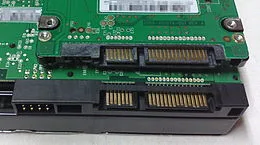
SATA ports are small, rectangular connectors with an L-shaped internal key. They are typically grouped together in blocks of two to eight ports. On most motherboards, the SATA ports are located in the lower-right area of the board, near the chipset heatsink.
The physical appearance of SATA 1, 2, and 3 ports is identical. The connector design, size, and shape are the same across all SATA generations. This means you cannot visually distinguish between SATA generations based on the port's physical appearance alone. You must use other methods to identify which generation each port supports.
SATA Express and M.2 SATA ports look different from standard SATA ports. SATA Express ports are larger and combine SATA connectivity with PCIe lanes. M.2 slots can support SATA or PCIe NVMe devices and use a different form factor entirely. These ports are not interchangeable with standard SATA ports.
If you have the physical manual that came with your motherboard, look for the section on internal connectors or storage connectors. This section typically includes a diagram of the motherboard layout with labeled ports, along with a table or description specifying the SATA generation for each port.
If you no longer have the physical manual, most motherboard manufacturers provide digital manuals on their websites. Navigate to your motherboard manufacturer's website, find your specific motherboard model, and download the manual from the support or downloads section. The digital manual contains the same information as the physical manual.
The motherboard manual may also include important notes about SATA port limitations. Some motherboards share bandwidth between SATA ports and other connectors like M.2 slots or PCIe slots. Using certain ports or combinations of ports may disable other connectors, and the manual will specify these sharing arrangements.
For information about M.2 slot compatibility and which slots to use for different types of drives, see our guide on does it matter which M.2 slot I use. Understanding slot and port usage is important for maximizing your motherboard's storage capabilities.
Method 2: Check BIOS/UEFI Settings
Your motherboard's BIOS or UEFI firmware provides information about connected devices and their operating speeds. You can use this information to identify which SATA generation your ports are operating at.
To access your BIOS/UEFI, restart your computer and press the appropriate key during boot. Common keys include Delete, F2, F10, or F12, depending on your motherboard manufacturer. The boot screen typically displays which key to press for BIOS setup.
Once in the BIOS/UEFI, navigate to the storage or SATA configuration section. This section typically lists all connected SATA devices along with their operating speed. If a device is listed as operating at 6.0 Gbps, it is connected to a SATA 3 port. If it shows 3.0 Gbps, it is on a SATA 2 port, and 1.5 Gbps indicates a SATA 1 port.
The BIOS/UEFI may also show the generation capability of each SATA port, even if no device is connected. Look for a SATA port configuration or SATA mode section that lists the maximum speed supported by each port.
Some BIOS/UEFI interfaces include an AHCI or RAID mode setting for SATA controllers. The mode setting affects how the SATA ports operate but does not change their maximum speed. AHCI mode is recommended for most users as it provides the best performance and features for SATA devices.
Method 3: Use Software Utilities
Several software utilities can provide information about your SATA ports and connected devices, including their operating speed. These tools are convenient alternatives to checking the BIOS/UEFI.
CrystalDiskInfo is a popular free utility that provides detailed information about storage devices, including the SATA interface speed. When you launch CrystalDiskInfo, it displays information about all connected storage devices, including the interface type and current transfer speed. This can help you determine which SATA generation your devices are operating at.
HWiNFO is a comprehensive system information tool that provides detailed hardware information, including SATA controller and port details. The Storage section of HWiNFO lists all connected storage devices along with their interface type, speed, and other specifications.
Windows Device Manager provides basic information about storage controllers and devices. Open Device Manager, expand the IDE ATA/ATAPI controllers section, and look for entries that identify your SATA controller. The controller model can help determine which SATA generations are supported.
CPU-Z includes a Mainboard tab that provides information about your motherboard model and chipset. While it does not directly list SATA port speeds, the chipset information can help you determine which SATA generations your motherboard supports. Different chipsets have different SATA capabilities, and identifying your chipset is a useful step in determining SATA port specifications.
Method 4: Visual Inspection of the Motherboard
While you cannot determine the SATA generation purely from the port's appearance, visual inspection of the motherboard can provide clues about SATA port capabilities.
Port labeling on the motherboard can indicate SATA generation. Some manufacturers print the SATA generation number next to each port, such as "SATA3_1" for a SATA 3 port or "SATA2_1" for a SATA 2 port. Look for small text labels near the SATA ports on your motherboard.
Color coding is used by some manufacturers to distinguish SATA port generations. While there is no universal color standard, some manufacturers use different colors for different SATA generations. For example, SATA 3 ports might be black while SATA 2 ports are blue. However, this varies by manufacturer and is not a reliable indicator on its own.
Port grouping can sometimes indicate generation differences. SATA 3 ports are often grouped together separately from SATA 2 ports. If your motherboard has ports in multiple groups, check the manual to determine which group corresponds to which generation.
The chipset heatsink location can provide a general indicator. SATA ports controlled by the chipset are typically located near the chipset heatsink, while SATA ports provided by third-party controllers may be located elsewhere on the motherboard. Chipset-provided ports are usually the primary ports and are often SATA 3.
Color Coding and Labeling
Some motherboard manufacturers use color coding and labeling to help users identify SATA port generations. While not universal, understanding these conventions can help you quickly identify port capabilities.
Common color coding schemes include using black for SATA 3 ports and blue or gray for SATA 2 ports. Some manufacturers use white for SATA 3 and black for SATA 2. Others may use orange or other colors for specific port groups. Always verify color coding with your motherboard manual, as there is no industry standard for SATA port colors.
Labeling conventions vary by manufacturer. Common labels include SATA3, SATA III, or 6G for SATA 3 ports, and SATA2, SATA II, or 3G for SATA 2 ports. Some motherboards number ports sequentially (SATA3_1, SATA3_2, etc.) while others use port numbers that correspond to their physical position on the motherboard.
Some manufacturers include a diagram on the motherboard itself that shows port assignments. This diagram is typically printed on the PCB near the SATA ports and can be a quick reference for port identification without consulting the manual.
For information about whether SATA cables are needed for SSDs and how to properly connect storage devices, see our guide on do you need SATA cables for SSD. Understanding SATA cable requirements is part of properly setting up your storage configuration.
Which SATA Port Should You Use?
Choosing the right SATA port for your storage devices ensures optimal performance. Here are recommendations for different scenarios.
For SSDs, always use a SATA 3 port if available. Modern SATA SSDs are designed to take advantage of SATA 3 bandwidth, and connecting them to SATA 2 or SATA 1 ports significantly limits their performance. Check your motherboard manual to identify which ports are SATA 3.
For hard drives, the SATA generation matters less because most hard drives cannot saturate even SATA 2 bandwidth. However, connecting hard drives to SATA 3 ports does not cause any issues and ensures maximum compatibility. Use SATA 3 ports for hard drives if they are available.
For boot drives, prioritize SATA 3 ports. Your operating system drive benefits most from maximum storage speed, as it handles frequent small reads and writes for system operations. Connecting your boot drive to a SATA 3 port ensures the best system responsiveness.
Consider port sharing when planning your storage configuration. Some SATA ports share bandwidth with M.2 slots or PCIe slots. Using a shared port may disable another connector, so plan your configuration to avoid conflicts. Check your motherboard manual for port sharing information.
For guidance on installing older SSDs in new systems and ensuring compatibility, see our article on how to install old SSD in new PC. This provides practical advice for reusing storage devices across system upgrades.
Frequently Asked Questions
How do I know if my SATA port is 1, 2, or 3?
Check your motherboard manual for port specifications, check the BIOS/UEFI for connected device speeds, or use software like CrystalDiskInfo to identify the SATA generation. The physical appearance of SATA ports does not indicate their generation.
Does it matter which SATA port I use?
Yes, it matters, especially for SSDs. SSDs need SATA 3 ports to achieve their full speed. Connecting an SSD to a SATA 2 port limits it to approximately 300 MB/s, while SATA 3 allows speeds of 500+ MB/s. For hard drives, the port generation matters less.
Can I use a SATA 3 SSD in a SATA 2 port?
Yes, SATA 3 devices are backward compatible with SATA 2 and SATA 1 ports. However, the SSD will be limited to the slower speed of the SATA 2 port (approximately 300 MB/s) instead of reaching its full SATA 3 speed (500+ MB/s).
Are all SATA ports on my motherboard the same speed?
Not necessarily. Many motherboards have a mix of SATA generations. Some ports may be SATA 3 while others are SATA 2. Check your motherboard manual to identify which ports support which speeds.
What happens if I use a SATA 1 port with a modern SSD?
The SSD will function but will be severely limited to approximately 150 MB/s, which is far below the SSD's capability of 500+ MB/s. This wastes most of the SSD's performance potential and is not recommended.
Do I need SATA cables for my SSD?
Yes, SATA SSDs require SATA data cables to connect to the motherboard and SATA power cables from the power supply. For more details, see our guide on do you need SATA cables for SSD.
Does it matter which M.2 slot I use?
Yes, M.2 slots can support different interfaces (SATA vs NVMe PCIe) and different PCIe generations. Using the wrong slot can limit performance. For details, see our article on does it matter which M.2 slot I use.
Can I install an old SSD in a new PC?
Yes, SATA SSDs are backward compatible and will work in new systems. However, ensure your new motherboard has available SATA ports and that the SSD's capacity and speed meet your needs. For a step-by-step guide, see our article on how to install old SSD in new PC.